Getting started with event pages
Create the content for your event’s invitation page, configure access protection and check the page’s content using its versions.
- Module
- Event pages
- From plan
- All plans
- Role
- Event organisers with permission to edit pages
- Time
- Approx. 10 minutes
Before you start
- You have access to an existing event.
- You have permission to edit the event page.
- Key event information, such as the title, date and venue, is ready.
Step by step
- 1
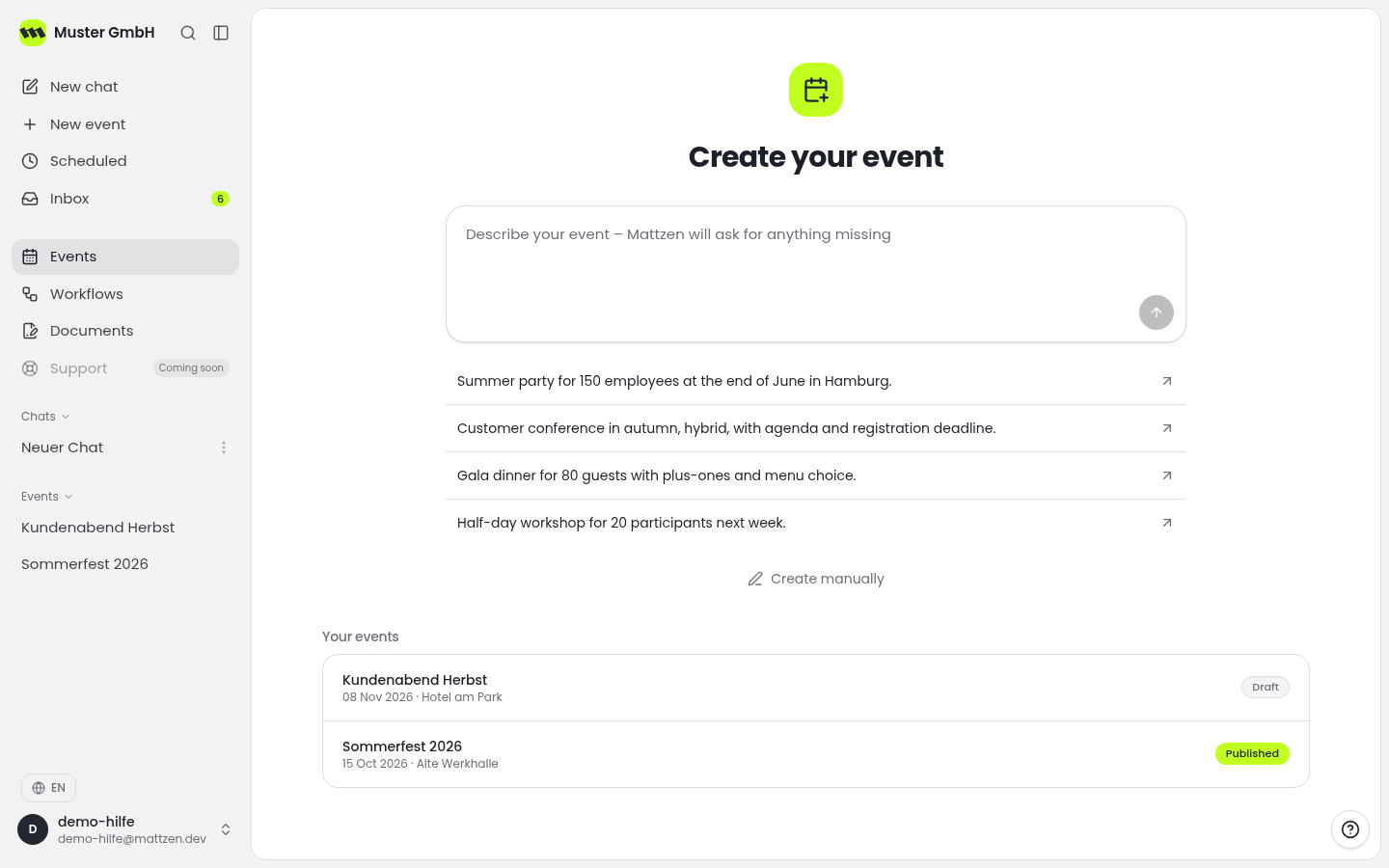
Open the event overview and select the event whose invitation page you want to edit.
 12
12- 1Event Overview
- 2Select Event
- 2
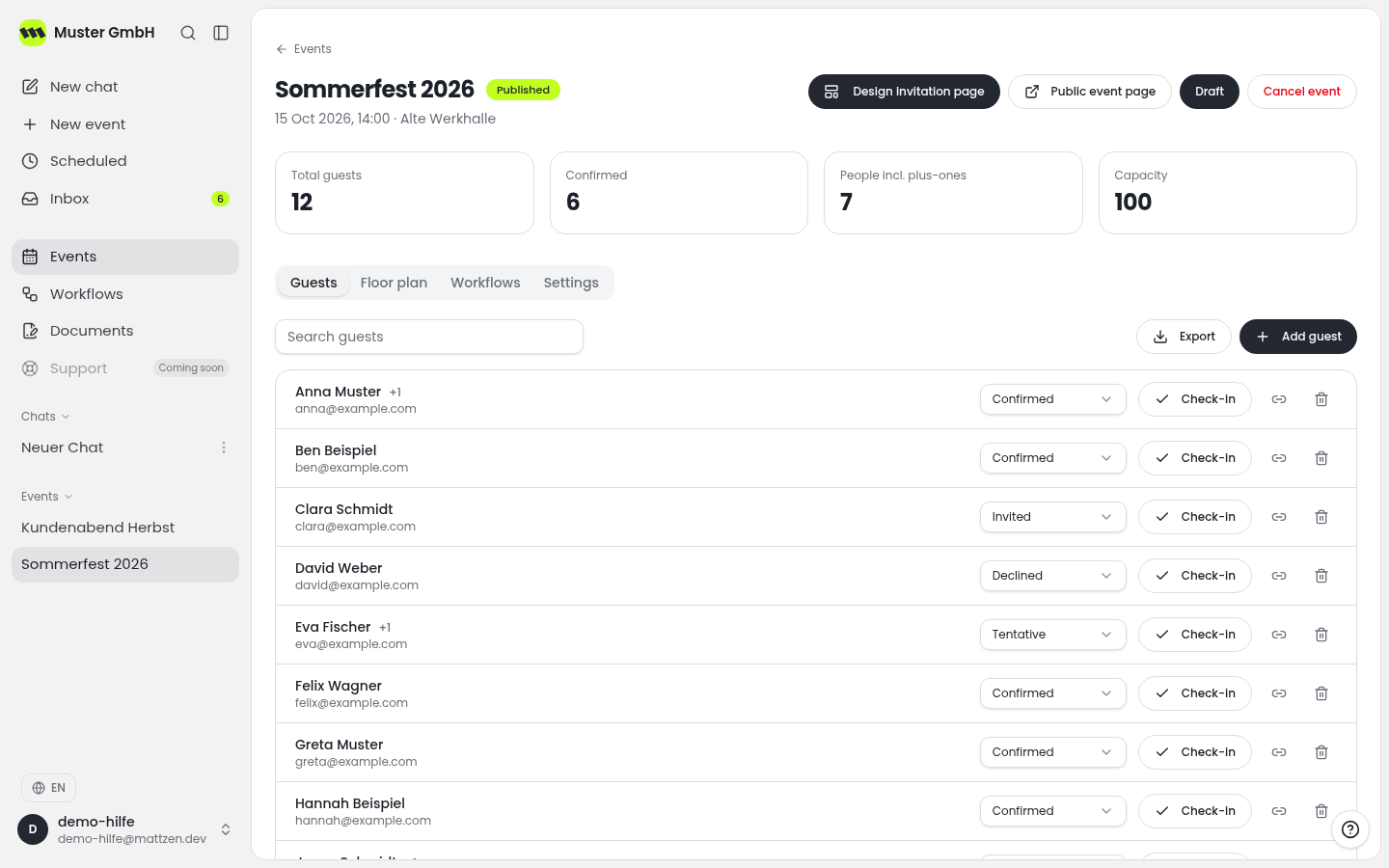
In the event view, check that you have opened the correct event. Then go to its event page.
 12
12- 1Review Event
- 2Go to Event Page
- 3
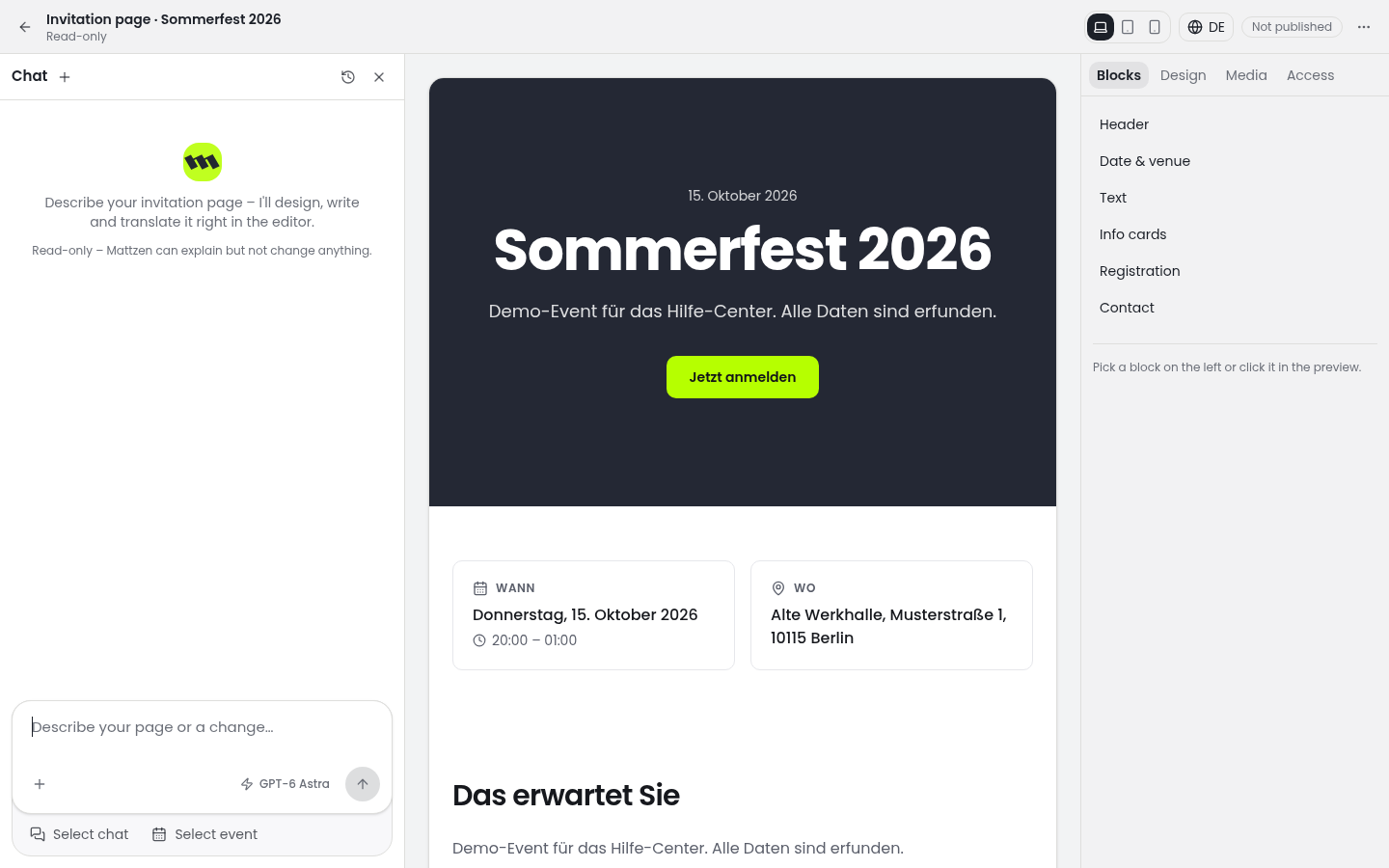
Edit the content in the page editor. Add a clear title and details of the date, venue and programme in the available sections.
 123
123- 1Title
- 2Date & Location
- 3Schedule
- 4
Review the event page’s access protection. From the available settings, choose the protection that suits your intended audience.
1 - 5
Review the available versions of the event page. Compare the content shown with your planned content to make sure you continue working with the intended version.
1 - 6
Read through the entire event page. Correct any missing or conflicting details and check access protection again before using the page for invitations.
Example
Result
Your event page’s content is prepared. You have reviewed access protection and the available versions. Sending invitation emails is a separate step.
Common problems
Cause: You may not have the required permission.
Solution: Ask a workspace admin to check your access to the event and your permission to edit pages.
Cause: You may have opened a different event or page version.
Solution: Check the event first, then review the available versions of the event page.
Tips
- Start with the information guests need first: the occasion, date, venue and programme.
- Agree on access protection before using the page for invitations.
- After making changes, check that all the details on the page remain consistent.
FAQ
What should a first event page include?
Start with a clear title, date, venue and a short description of the programme. Add further information as needed in the editor’s available sections.
Can I protect access to the event page?
Yes. The Event pages module includes access protection. You can see the available settings in the event page view.
Does editing the event page automatically send invitation emails?
Treat page editing and sending emails as separate tasks. Invitation emails are managed through the Email sending module.